5 Best Live Sales Notification WordPress Plugins (Free Download)
Hossein Alehabib
Share the article
In this article:
Let’s be honest for a second.
You searched for “WooCommerce live sales notification plugin” because you want more sales. Not more plugins. Not more settings to configure. More sales.
And somewhere in the back of your mind, there’s probably a quiet worry: “But what if my store is too new? What if I don’t have enough orders to show notifications?”
That’s the most common objection we hear, and it’s also the one we’re going to destroy in the first section of this article. Because the truth about sales notifications might surprise you.
The “I Don’t Have Enough Orders” Myth (And Why It’s Killing Your Conversions)
Here’s what most store owners think: live sales notifications only work for big stores with hundreds of orders per day. They picture Amazon-style “143 people bought this in the last hour” alerts and think, “That’s not me. I can’t pull that off.”
So they skip showing real sales notifications entirely. And they keep losing visitors who were this close to buying.
Here’s what they’re missing.
Imagine a visitor lands on your product page. They’re interested but hesitant. Then a small notification slides in from the corner: “Emily recently purchased this.”
No timestamp. No “2 minutes ago.” Just Emily. Just recently.
That visitor doesn’t know if “recently” means yesterday or three weeks ago. They don’t need to. What they feel is: someone else bought this and trusted this store. That feeling is worth more than any discount you could offer.
With a plugin like Notifal, you control exactly how your notifications read. You can say “recently purchased” instead of showing a timestamp. So if your last order was 20 days ago, it still shows up as recent. Still real. Still trust-building.
Even 3 orders a month is enough to make sales notifications work for your store.
The question isn’t whether you have enough orders. The question is whether you’re using the orders you have.
What Is a WooCommerce Live Sales Notification?
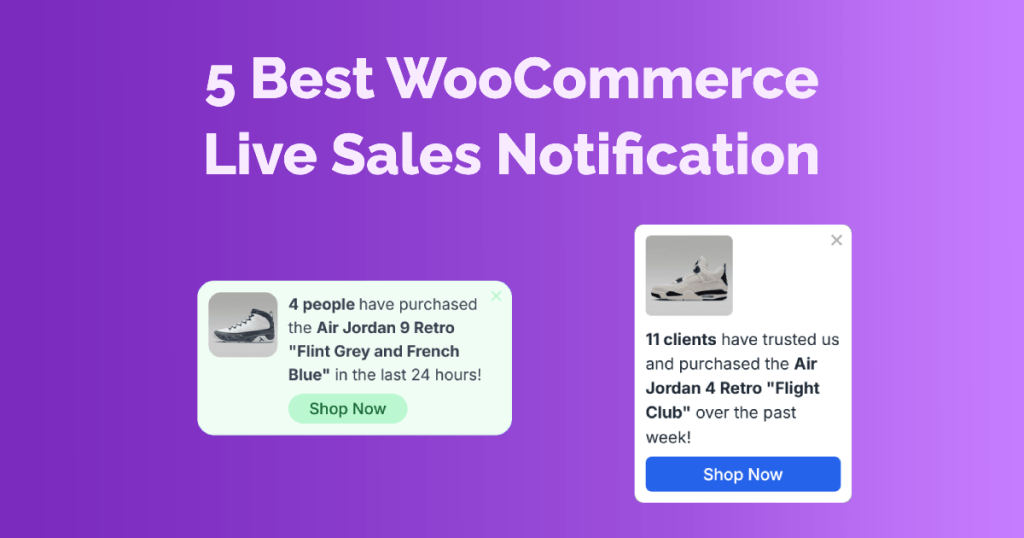
A WooCommerce live sales notification is a small popup or floating alert that appears on your website showing real purchase activity from your store. It pulls data directly from your WooCommerce orders and displays it to current visitors.
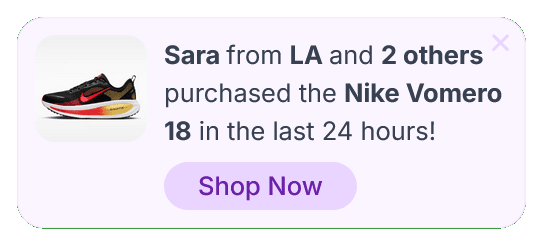
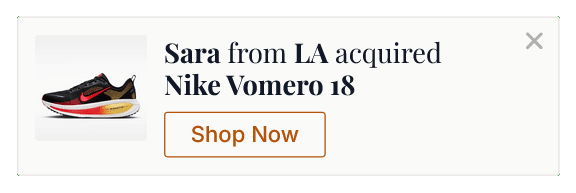
A typical notification looks like this:
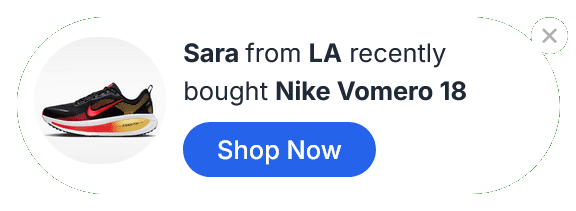
“James from Chicago just purchased Wireless Headphones Pro.”
Or more subtly:
“Someone recently bought this product.”
These alerts work because of a well-documented psychological principle called social proof. When people see that others have purchased something, their brain shortcuts the decision-making process. The hesitation drops. The trust rises. The “add to cart” button gets clicked.
What to Look for in a WooCommerce Sales Notification Plugin
Before we get to the list, here’s what actually matters when choosing a plugin, based on what real store owners run into:
Real data, not fake data. Some plugins let you manually enter fake purchases. Never do this. It’s dishonest, it can violate FTC guidelines, and it backfires badly when someone notices. Only show real orders.
Control over the timestamp. This is the underrated one. If you can show “recently purchased” instead of “23 days ago”, you preserve the social proof effect without the awkward time gap.
Design that doesn’t look like every other store. Generic toast notifications get ignored. You want something that fits your brand.
Targeting. Showing a notification for a product someone already bought is noise. Smart targeting shows relevant notifications at the right moment.
Performance. A plugin that slows your store down costs you more than it earns.
Now, the list.
The 5 Best WooCommerce Live Sales Notification Plugins
Plugin
Free Version
Real WooCommerce Data
Timestamp Control
Popup Builder
Revenue Tracking
Notifal
Yes
Yes
Yes
Yes
Yes
TrustPulse
Yes
Yes
Limited
No
No
NotificationX
Yes
Yes
Limited
No
No
FOMO
No
Yes
Yes
No
No
Proofly
Yes
Yes
Basic
No
No
1. Notifal, Best WooCommerce Live Sales Notification Plugin Overall
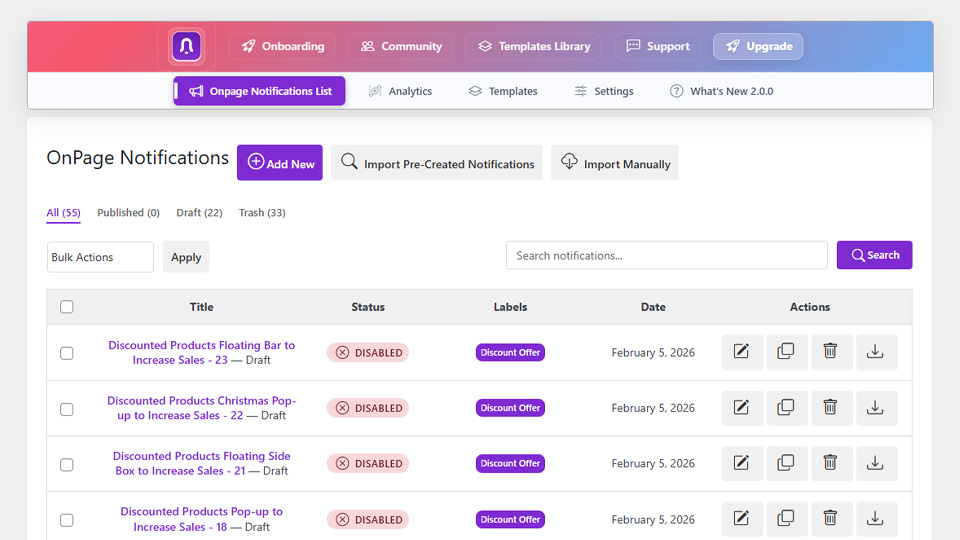
Notifal on-page notification list
Best for: WooCommerce stores of any size that want real social proof, smart design control, and actual revenue tracking in one free plugin.
Notifal is built differently from the other plugins on this list. Most sales notification plugins do one thing: show a small toast alert with recent purchase data. Notifal does that, and then keeps going.
It’s a full conversion engine for WooCommerce. You get live sales notifications, but also exit intent popups, email capture forms, cart abandonment alerts, discount coupon popups, and upsell notifications, all pulling from real WooCommerce data, all from one dashboard.
For a store owner who’s tired of installing five different plugins that half-work together, Notifal is the answer.
The “Recently Purchased” Feature That Small Stores Love
This is the one that changes the game for smaller stores.
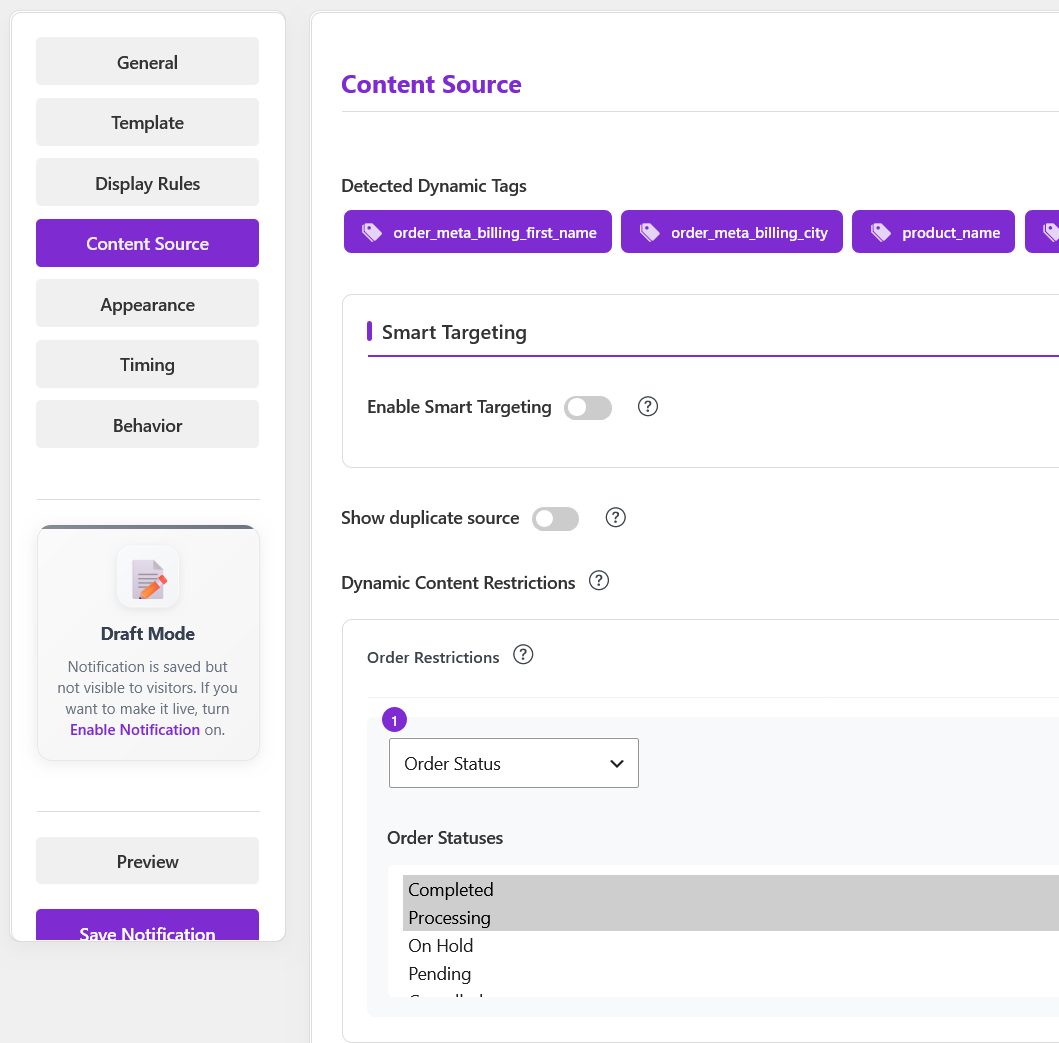
In Notifal, when you set up a recent sales notification, you choose the content source as your WooCommerce orders. The notification then pulls real buyer data, real product names, and real purchase info.
But here’s the part most people don’t realize: you control exactly how the notification reads.
Instead of this:
“John purchased Running Shoes – 23 days ago”
You write:
“John recently purchased Running Shoes.”
The word “recently” does a lot of heavy lifting. It’s honest (John did recently purchase, relative to your store’s history). It builds trust (a real person made a real purchase). And it doesn’t make your store look slow just because you’re not doing 50 orders a day.
If you have 5 real orders in the past month, that’s 5 pieces of social proof rotating through your notifications. Notifal cycles through them automatically. Your store looks active. Your visitors feel confident. Your conversions improve.
Dynamic Tags That Make Every Notification Feel Personal
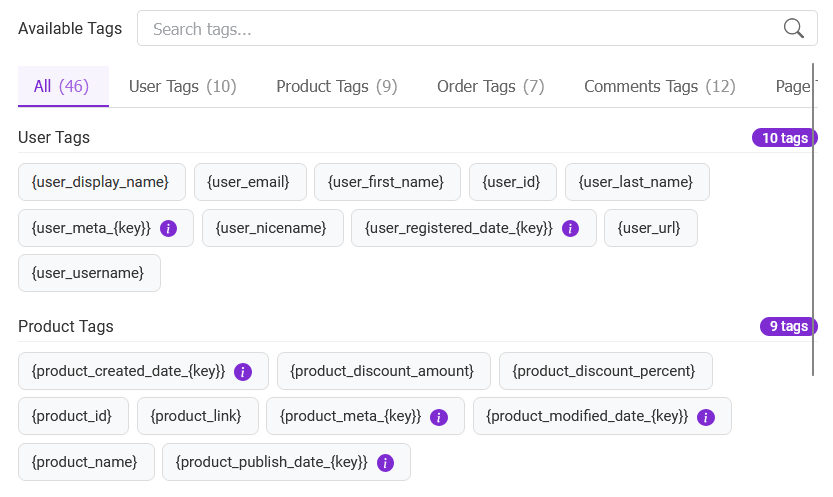
Notifal dynamic tags
Static notifications get ignored. Personalized ones get attention.
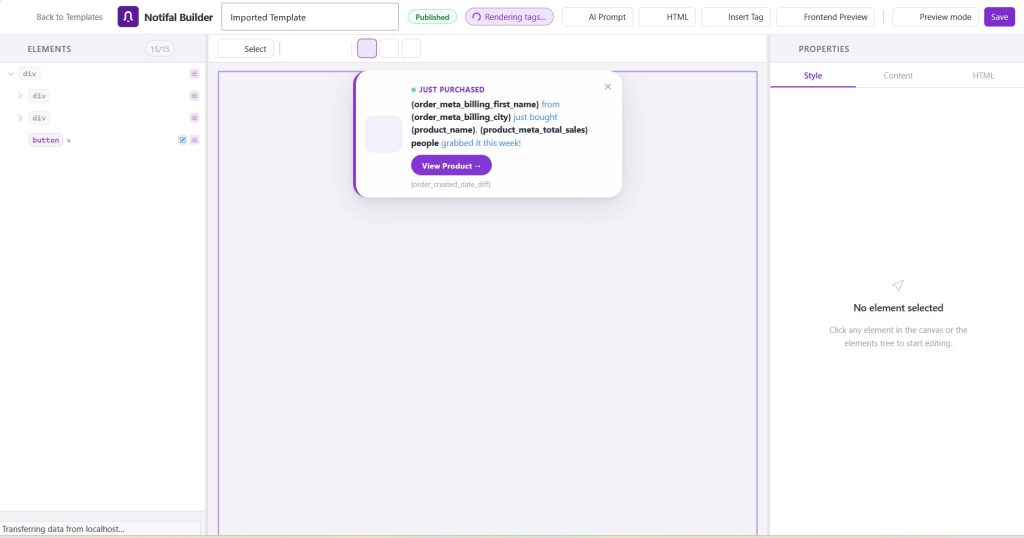
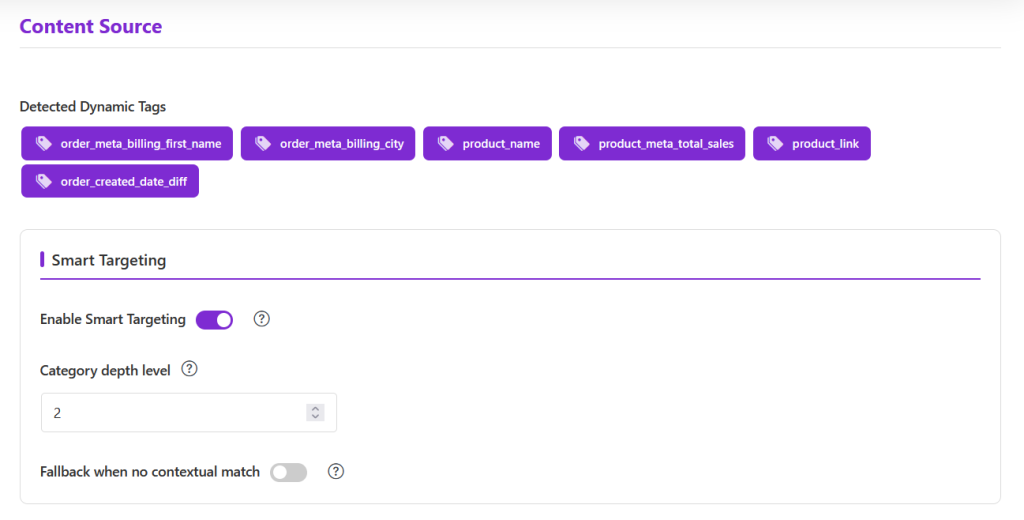
Notifal uses dynamic tags that automatically pull real data into your notification template:
{order_meta__billing_first_name} pulls the buyer’s first name
{product_name} shows the actual product they bought
{product_meta__price} displays the real price
{cart_total} shows the visitor’s live cart value
{cart_checkout_url} links directly to checkout
So your notification doesn’t say “Someone bought a product.” It says “Maria purchased the Leather Journal Set.” Real name. Real product. Real trust.
Cart Products, The Upsell Feature Nobody Talks About
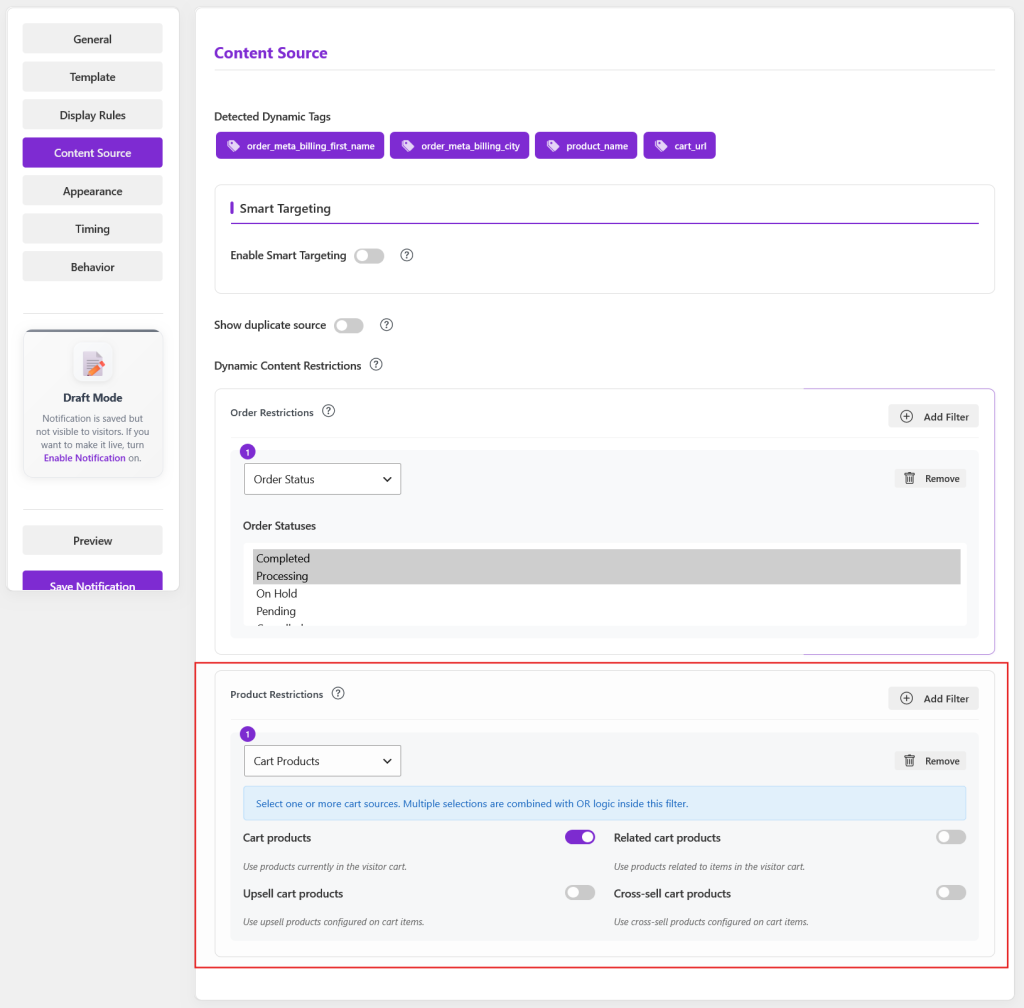
Notifal cart products content source settings
This is where Notifal genuinely surprises store owners.
There’s a feature called Cart Products that lets your notifications pull product data directly from the visitor’s live WooCommerce cart. When someone adds a product to their cart, Notifal can immediately show them a notification featuring a related product, an upsell, or a cross-sell from that cart context.
The notification updates in real time as the cart changes. No page reload needed.
Think about what this means: the moment a customer adds a yoga mat to their cart, a floating notification appears showing a yoga block set that other buyers added alongside it. That’s not a generic popup. That’s a personalized recommendation at exactly the right moment.
This feature alone can meaningfully increase your average order value (AOV), and it’s powered by the upsell and cross-sell relationships you’ve already configured in WooCommerce.
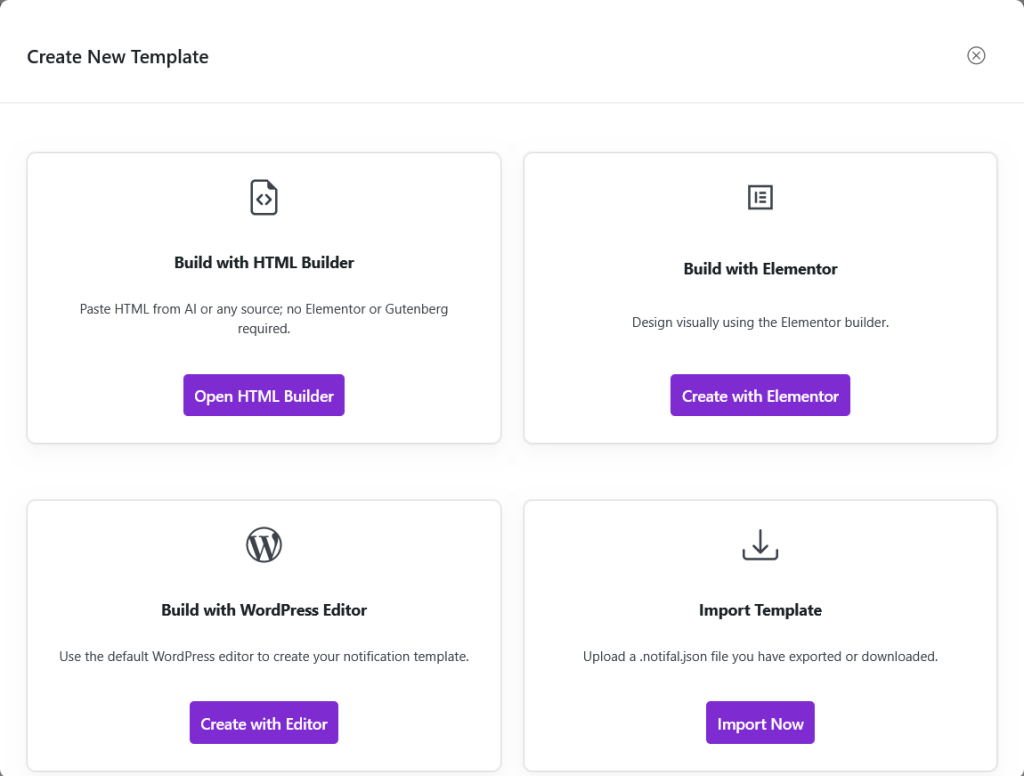
Most notification plugins give you one design option: pick a color, pick a font, done. Notifal gives you three completely different builders depending on how you prefer to work.
Elementor. If you already use Elementor, you build your notifications with the exact same drag-and-drop interface you use for your pages. Any Elementor widget works. Forms, countdown timers, WooCommerce product grids, buttons, everything.
WordPress Block Editor. Prefer Gutenberg? Build your notifications with native WordPress blocks. Columns, images, headings, buttons, shortcodes, third-party blocks. Full flexibility.
Notifal HTML Builder. This one is new and genuinely clever. Paste any self-contained HTML into the builder, edit text and colors visually without touching code, preview it live, and publish. There’s also a built-in AI prompt that generates ready-to-use HTML with your brand colors and Notifal’s dynamic tags already embedded. You copy the prompt, paste it into ChatGPT or Claude, get back a template, drop it into the builder, and you’re live.
100+ Templates, Including Sales Notification Designs
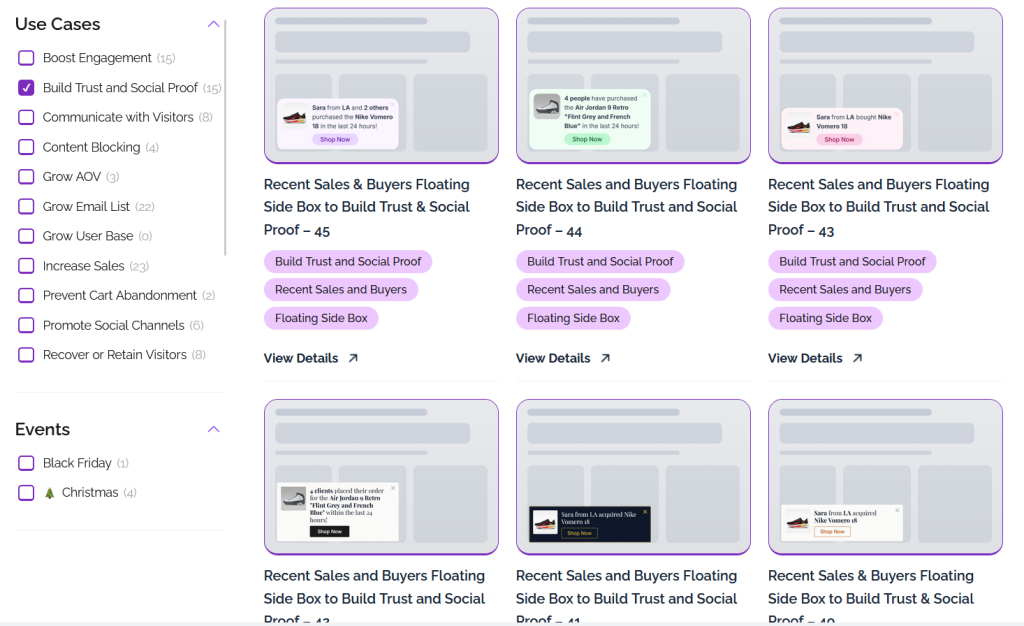
If building from scratch sounds like too much work, the template library solves that. Notifal has 100+ professionally designed templates covering every use case. For sales notifications specifically, you’ll find floating side box designs, toast-style alerts, and more prominent popup versions.
Import a template in one click, connect it to your WooCommerce orders, adjust the copy, and it’s live.
Smart Targeting, So Your Notifications Stay Relevant
Here’s a scenario that hurts conversions: a visitor is browsing your skincare products and a notification pops up showing someone buying your kitchen equipment. Irrelevant. Annoying. Dismissed!
Notifal’s Smart Targeting prevents this. On a single product page, it prioritizes data from that product. On a category archive, it surfaces items from that category. The notification content follows the visitor’s context automatically.
You can also set:
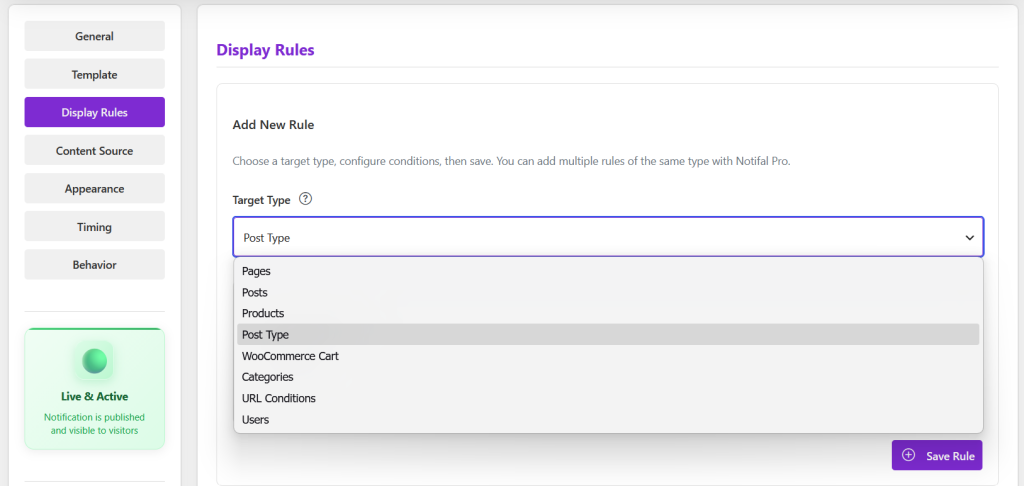
Which pages notifications appear on
Who sees them (guests, logged-in users, returning visitors)
WooCommerce cart conditions (show only when cart total exceeds $50, for example)
URL-based targeting for visitors coming from specific traffic sources
This is the feature that genuinely separates Notifal from everything else on this list.
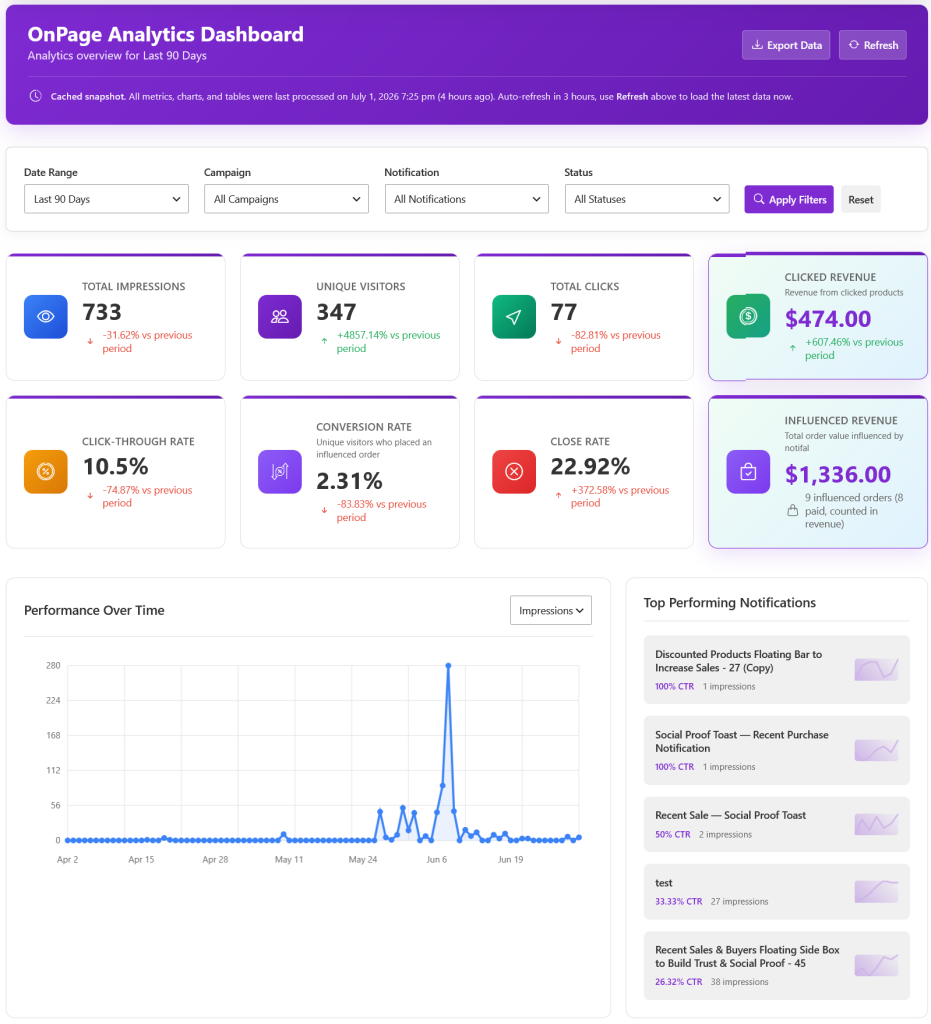
Most notification plugins show you impressions and maybe clicks. Notifal shows you exactly how much revenue each notification generated. You can see that your recent sales floating notification brought in $340 this month. You can see which popup converts at 8% and which one converts at 2%.
This isn’t guesswork. This is data that tells you exactly what’s working and exactly what to fix.
The analytics dashboard includes:
Revenue generated per notification
Total impressions and unique users (Pro)
Click-through rate (Pro)
Conversion rate (Pro)
Close rate, so you know which notifications are annoying people (Pro)
Campaign-based analytics filters (Pro)
Even on the free version, revenue tracking is available. For a store trying to justify keeping a plugin, this alone makes the case.
Beyond Sales Notifications, Everything Else Notifal Does
Because Notifal is a full conversion toolkit, your recent sales notification is just the starting point. From the same plugin, you can also run:
Exit intent popups to catch visitors before they leave
Cart abandonment alerts to recover lost sales
Email capture forms to grow your list
Discount coupon popups for first-time buyers
Free shipping progress bars to increase order value
WhatsApp chat buttons for direct customer support
See the complete list of Notifal use cases to understand how far this goes.
2. TrustPulse, Best for Stores That Want Simple Setup Fast
Best for: Store owners who want a sales notification live in under 10 minutes with no design decisions.
TrustPulse is the most well-known name in WordPress social proof notifications, and its reputation is earned. The setup is genuinely fast, the WooCommerce integration works reliably, and the “On Fire” mode that shows trending product activity adds a useful urgency layer.
What TrustPulse doesn’t do is go beyond the toast notification. There’s no popup builder, no email capture, no exit intent, no cart abandonment. It does one thing well and stops there.
For a store owner who only wants recent purchase notifications and nothing more, TrustPulse is a reasonable choice. For anyone who wants to actually grow conversions across the full visitor journey, it hits a ceiling quickly.
3. NotificationX, Best Free Option for Blogs and Content Sites
Best for: WordPress content sites, blogs, and affiliate stores that want multiple notification types on a generous free tier.
NotificationX takes a broader approach to notifications. Beyond WooCommerce sales alerts, it covers review notifications from Google and Trustpilot, download counts for digital products, comment activity, and email subscriber growth alerts.
If your store also runs a blog and you want to surface content engagement alongside purchase notifications, NotificationX covers more ground than most plugins in the free tier.
Best for: Businesses selling on WooCommerce, Shopify, and other platforms simultaneously who want one social proof tool across all of them.
FOMO is not a WordPress plugin in the traditional sense. It’s a standalone social proof platform that connects to your site via a script embed and integrates with 100+ tools including WooCommerce, Stripe, Mailchimp, and Shopify.
Its strength is breadth. If you’re running a WooCommerce store alongside a Shopify presence, or if you’re pulling purchase data from multiple sources into one notification stream, FOMO handles that complexity.
For a store running purely on WooCommerce and WordPress, the extra infrastructure and monthly cost rarely justify the choice over a native WordPress plugin.
Key Features
100+ integrations including WooCommerce
Real-time notifications across platforms
A/B testing for notification copy and design
Advanced analytics
Multilingual support
Customizable notification templates
Limitations
No free plan, trial only
Monthly subscription cost is significant for small stores
5. Proofly, Best Lightweight Option for Brand New Stores
Best for: Brand new WooCommerce stores that want the most basic sales notification setup with minimal configuration.
Proofly is a lightweight plugin that handles the basics without friction. Install it, connect it to WooCommerce, choose your notification style, and it starts pulling recent purchase data. No complex settings. No steep learning curve.
For a store that just launched and wants social proof notifications running while they focus on other priorities, Proofly fills that gap. It won’t scale with you, but it works for the starting line.
Key Features
Recent sales notifications from WooCommerce orders
Visitor counter notifications
Basic position and color customization
WooCommerce integration
Simple page targeting
Limitations
Very limited design options
No popup builder, email capture, or cart abandonment
Basic analytics only
No dynamic tags or personalization
Smaller developer community and slower update cycle
How to Set Up a WooCommerce Live Sales Notification with Notifal
Here’s how to get your first real sales notification live in under 10 minutes.
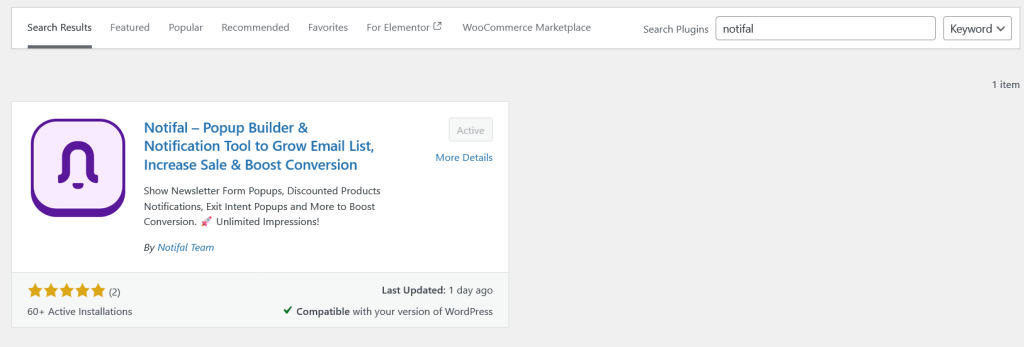
Step 1: Install Notifal
How install notifal
Go to Plugins, Add New in your WordPress dashboard. Search for “Notifal”. Install and activate.
Step 2: Import a Sales Notification Template
[SCREENSHOT: Notifal Template Library with "Build Trust and Social Proof" filter active, showing Recent Sales templates]
Click Notifal in your sidebar, then Import Pre-Created Notifications, then filter by “Build Trust and Social Proof” and choose a Recent Sales template. Click on View details & import and Import it in one click.
Step 3: Connect to Your WooCommerce Orders
In the notification editor, go to Content Source and select Orders. This tells Notifal to pull real WooCommerce purchase data. Set your order timeframe. If orders are recent, show the last 30 days. If your store is newer, expand that window to 90 days and use “recently purchased” language in your template.
Notifal Cart Products content source settings
Step 4: Write Your Notification Copy
This is where you make the smart decision about timestamps. Write your template like this:
The first version is always relevant. The second version can hurt you if your last order was a few weeks ago. Both are honest. Only one is smart.
Step 5: Set Your Display Rules
Go to the Display Rules tab. For a sales notification, showing it on product pages is the highest-impact placement. Set the trigger to After Delay and give visitors 5-8 seconds to settle on the page before the notification appears.
Step 6: Activate and Track
Toggle the notification to Active and visit your store to confirm it’s showing. Then check back in the Analytics dashboard after a few days to see impressions and revenue generated.
Frequently Asked Questions
Do I need a lot of orders for WooCommerce sales notifications to work?
No. Even 3 to 5 real orders is enough to run effective sales notifications. The key is using “recently purchased” language instead of showing exact timestamps. This keeps your notifications credible and trust-building without exposing slow order volume. Notifal gives you full control over how your notification copy reads.
Are fake sales notifications allowed?
No. Showing fake purchase activity is deceptive and can violate FTC regulations. Beyond the legal risk, it backfires when customers notice. Always use real WooCommerce order data. Every plugin on this list supports real data. Only use real data.
Will a sales notification plugin slow down my WooCommerce store?
A well-built plugin won’t. Notifal is built with performance in mind, loading only what’s necessary and avoiding impact on Core Web Vitals. Always run a PageSpeed test after installing any plugin to confirm.
Can I show sales notifications on specific product pages only?
Yes. Notifal’s display rules let you target specific pages, product categories, or URL patterns. Showing a sales notification for Product A on Product A’s page is far more effective than showing it everywhere.
What’s the difference between Notifal free and Pro for sales notifications?
The free version gives you 1 active notification with real WooCommerce data, dynamic tags, revenue tracking, and unlimited impressions. That’s enough to get started and prove the value. Pro unlocks unlimited active notifications, advanced analytics, exit intent and scroll triggers, user role targeting, URL conditions, and Smart Targeting for contextual content.
Can Notifal show upsell notifications based on what’s in the cart?
Yes. The Cart Products content source lets Notifal pull product data from the visitor’s live WooCommerce cart, including related products, upsells, and cross-sells you’ve configured in WooCommerce. The notification updates in real time as the cart changes.
Which Plugin Should You Choose?
If you want our honest recommendation after testing all five:
Start with Notifal.
It’s the only plugin on this list where the free version gives you real WooCommerce sales notifications, revenue tracking, design freedom across three builders, and a path to more advanced conversion tools as your store grows. You’re not locked into one type of notification. You’re not paying for features you’ll never use. And you’re not installing five different plugins to accomplish what Notifal handles from one dashboard.
For stores with small order volumes, the timestamp control alone is worth it. For growing stores, the cart upsell notifications and revenue tracking change how you think about your conversion strategy.
If you genuinely only want a simple toast notification and nothing else, TrustPulse works. But most store owners eventually want more than that.
Not sure how to configure it for your specific store? The Notifal team offers free configuration. Open a ticket at notifal.com/my-account/support and they’ll set up the right notifications for your store at no charge.
Found this guide useful? Share it with another WooCommerce store owner who’s leaving social proof on the table.