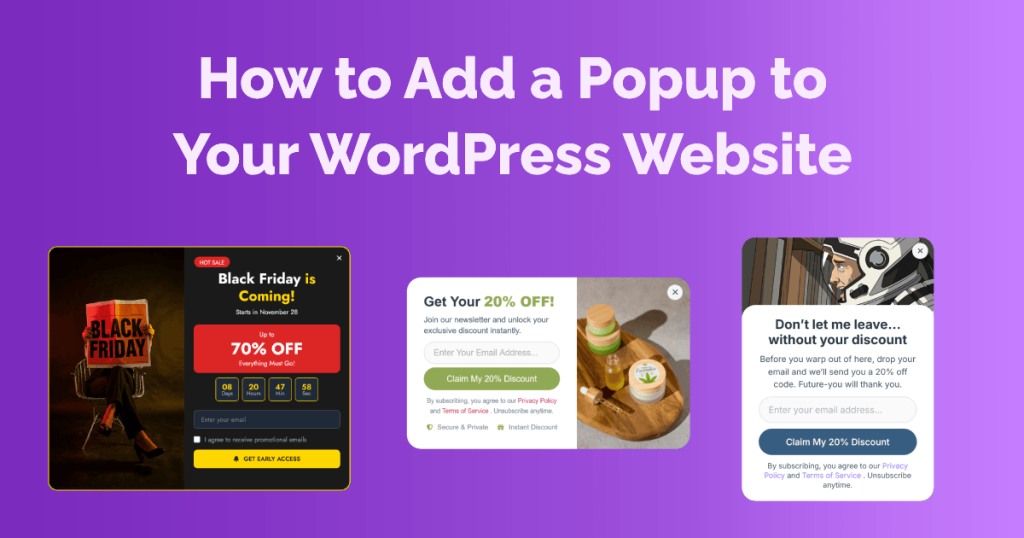
How to Add a Popup to Your WordPress Website (Beginner’s Step-by-Step Guide)
Hossein Alehabib
Share the article
In this article:
Most WordPress users think adding a popup requires a developer. It doesn’t.
With the right plugin, you can create a fully functional, professionally designed popup in under 10 minutes! No code, no custom CSS, no technical headaches. Whether you want to grow your email list, promote a discount, or reduce cart abandonment, a popup is one of the highest-converting tools on any WordPress site.
In this guide, you’ll learn exactly how to add a popup to WordPress the practical way: start from Notifal’s pre-created notifications (ready-made layouts built for conversions), then adjust content, targeting, and timing. We’ll also cover how to start from an empty on-page notification and pick a template in the editor if you prefer. We’ll walk through installing Notifal, importing a template, configuring settings to match your site, and publishing your notification live, step by step. By the end, you’ll have a working popup on your site.
Let’s get into it.
What you will learn in this guide: install Notifal, import a ready-made popup template, customize it in Elementor or the Block Editor, set display rules and timing, preview, and publish. No coding required.
Steps at a glance: (1) Install Notifal, (2) Import a pre-created notification, (3) Customize in the editor, (4) Appearance and content source, (5) Display rules, (6) Timing, (7) Behavior, (8) Preview and publish.
The plugin we’ll use throughout this guide is Notifal – a WordPress popup builder that’s genuinely beginner-friendly, works with both Elementor and the native WordPress Block Editor, and ships with 100+ professionally designed templates you can import with a single click.
The free version is enough to follow every step in this tutorial.
Getting the plugin installed takes about two minutes. Here’s how:
Log into your WordPress admin dashboard
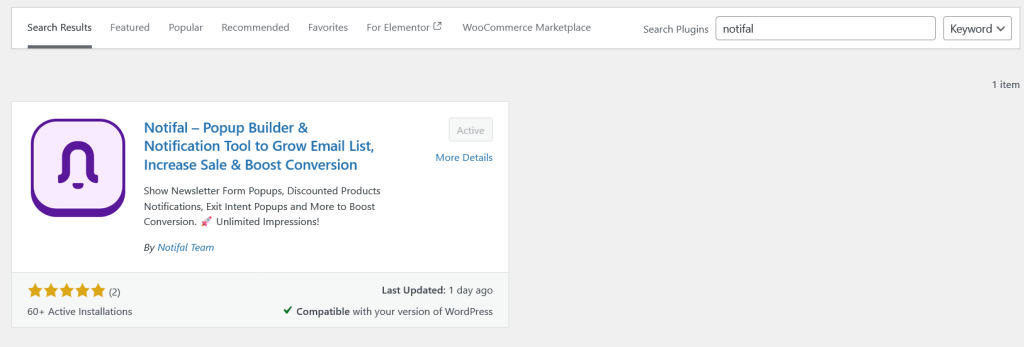
Go to Plugins → Add New in the left sidebar
In the search bar, type “Notifal”
Find the Notifal plugin in the results and click “Install Now”
Once installed, click “Activate”
How install notifal
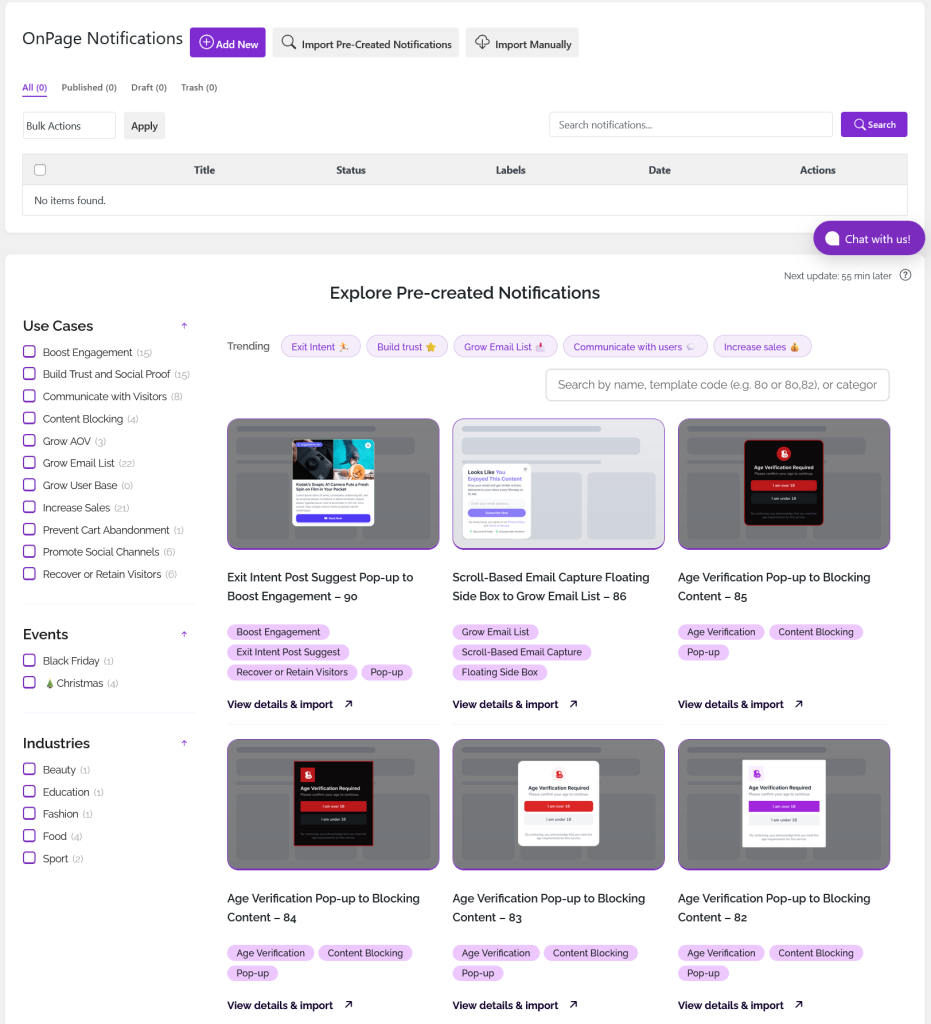
After activation, you’ll see a Notifal menu item appear in your WordPress sidebar. Click it to open the on-page notifications list. You will see all on-page notifications here; at first the list is empty. On the same screen you’ll find Explore Pre-created Notifications – Notifal’s browsable library – where you can import a ready-made layout in one click. For a focused install walkthrough, see installing and activating Notifal.
Quick tip: If you already have Elementor installed, Notifal integrates with it seamlessly. Prefer to stick with the native WordPress Block Editor? Notifal works perfectly with that too. No switching required.
Step 2: Start From a Pre-created Notification (Recommended)
Here’s where many generic tutorials push a blank canvas first. With Notifal, the smarter default is different: use pre-created popupswhenever you can. They are full layouts you import from inside the plugin – already structured, styled, and aimed at common goals (email capture, offers, social proof, and more). You can still tweak every detail after import.
Why pre-created first? They save time, look polished out of the box, and are designed with conversion-minded structure. If you need something highly custom later, you can add a new on-page notification and choose any template from the Template tab.
On the on-page notifications screen, scroll to the Explore Pre-created Notifications section. You’ll see a filter sidebar (use cases, layouts, industries, and more), Trending shortcuts, and a search field (by name, template code, or category). The list refreshes on a schedule; if something just launched and you don’t see it yet, try again after the cache updates.
Built for multiple industries: eCommerce, blogs, SaaS, local businesses, agencies
Ready to import in one click: you start from a finished layout, not an empty box
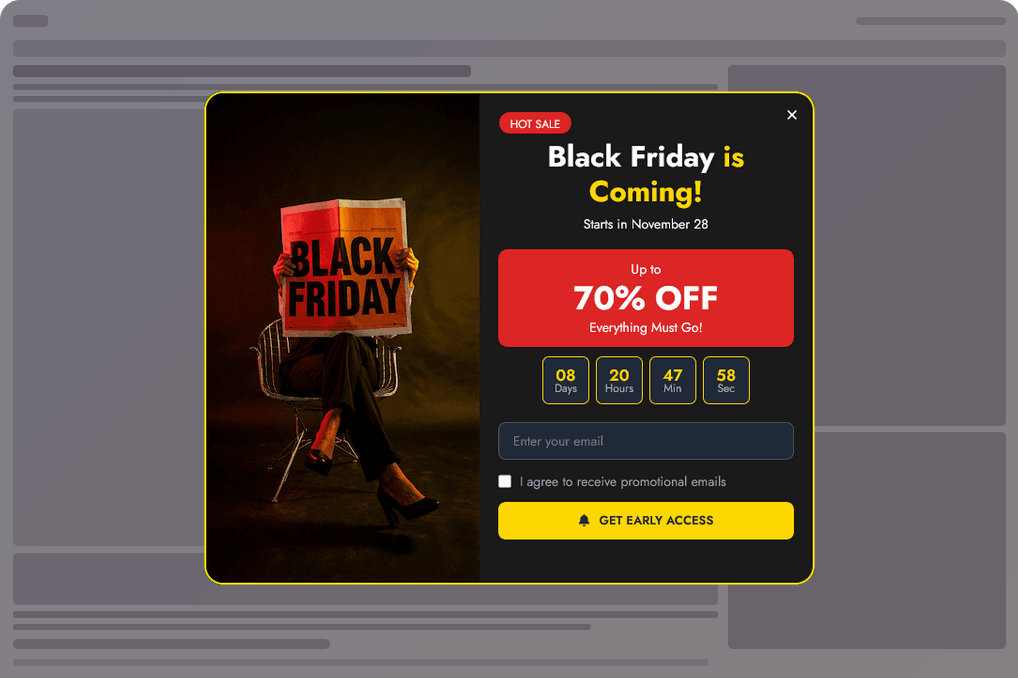
Browse the template library and filter by use case, or start from a conversion goal and pick a matching layout. Looking for an email signup form? There are many templates for that. Want a Black Friday countdown popup? There are some for that too.
When you find a template you like, click on View details and import. A modal opens with a description and preview (desktop and mobile). From there, you choose whether to import into the Elementor builder or the native Block Editor builder – pick the one you use on your site. After import, Notifal creates your on-page notification and opens the editor so you can customize and publish.
Starting without a pre-created layout (optional): From the on-page notifications list, use Add New On-Page Notification. You’ll land in the same editor; open the Template tab, browse Elementor Templates and/or Block Editor Templates, select a card to attach that template, then use the edit icon on the card to open the builder. Pre-created imports remain the fastest path when you want a proven layout.
Step 3: Customize Your Notification in the Editor
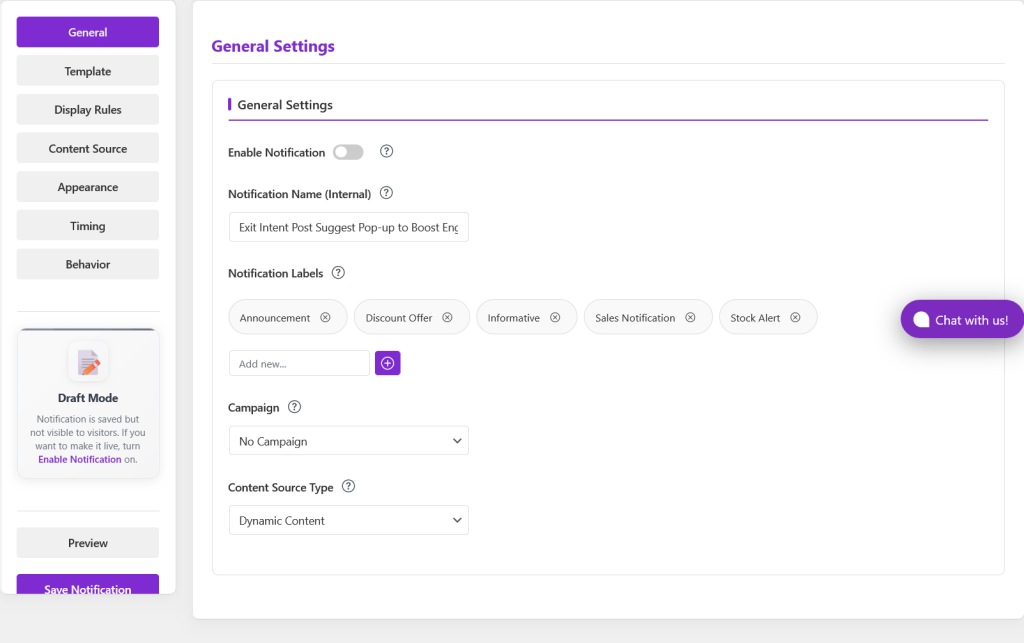
After import (or after Add New and choosing a template), you’re in Edit On-Page Notification. The left sidebar lists every settings area in order: General, Template, Display Rules, Content Source, Appearance, Timing, and Behavior. Use Save Notification when you’re done with changes; use Preview to check the popup on the live site. For a tab-by-tab reference, see notification editor tabs overview.
General Settings
Onpage notifications-general settings
Give your notification a clear Notification Name (Internal) – for example, “Homepage Email Popup, August” – so you can spot it in the list and in analytics later. You can assign a Campaign if you use campaigns and want scheduling coordinated. Content Source Type (Dynamic vs Static) controls how certain data is resolved in the template. If you are using tags ( we’ll talk about this later ) select dynamic, and if you are using simple text, select static. If you imported a pre-created notification, these settings are preserved, and you can change “Notification Name” in the general settings if you want.
Leave Enable Notificationoff while you’re still editing; turn it on when you’re ready to go live. Enabling sets the notification to published behavior as described in the interface.
Template tab (choose the layout, then edit in the builder)
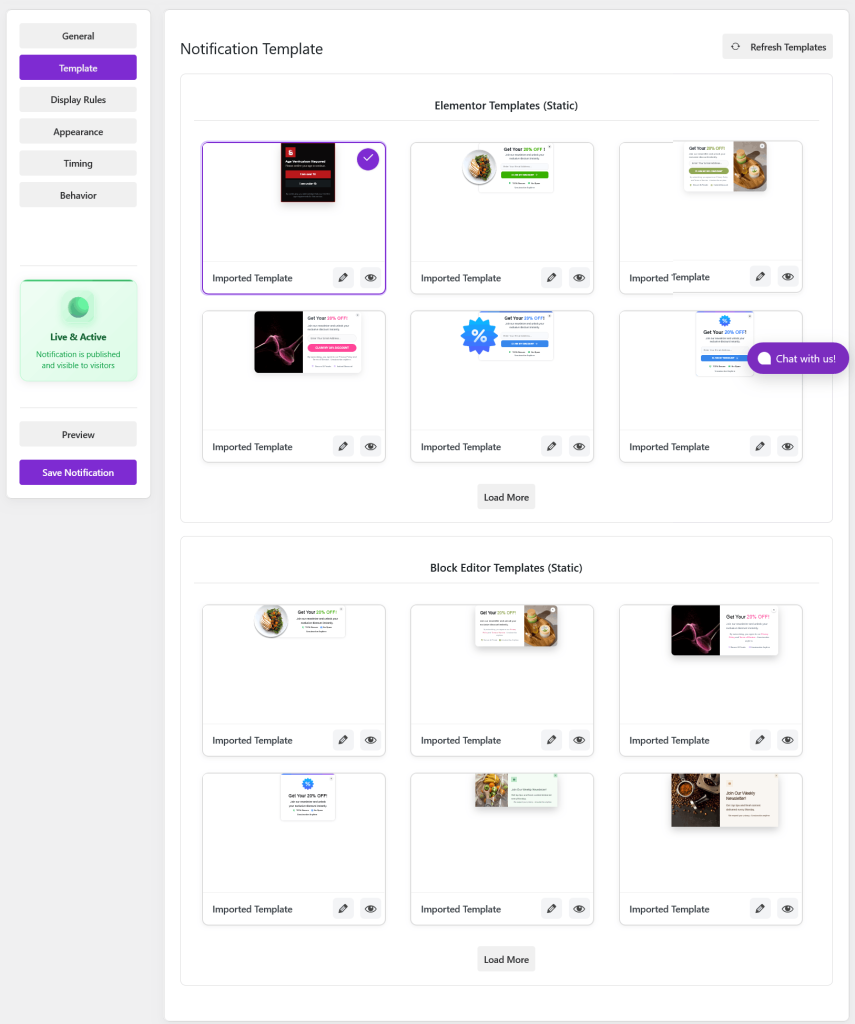
The Template tab is not a mini page builder inside Notifal; it’s where you see all available templates for your builder (Elementor and/or Block Editor, depending on what’s active). After import, your chosen template is already selected.
Browse every template in the grid for each builder section. You can switch to a different template anytime by selecting another template card (only one active selection at a time).
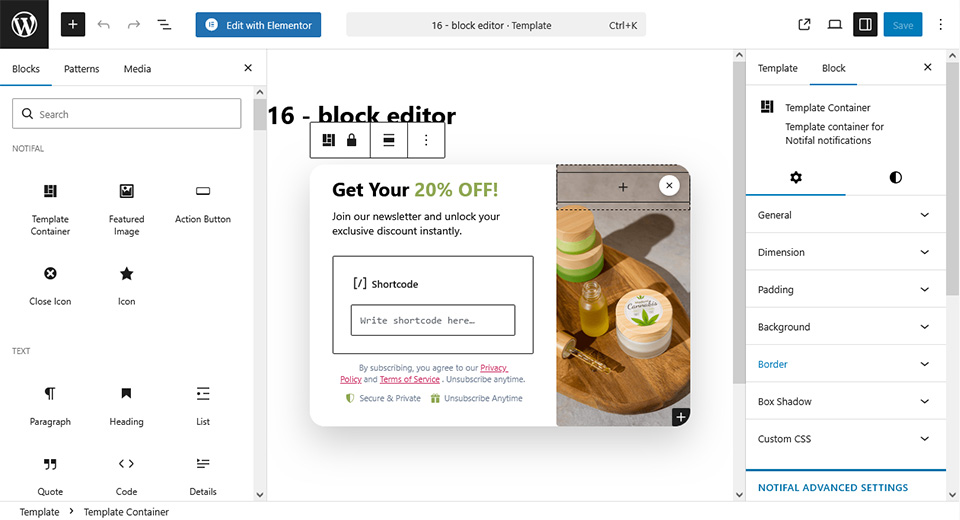
Click the edit icon on a template card to open that template in Elementor or the Block Editor in a new tab – that’s where you change headlines, images, buttons, and layout.
Use the view (eye) icon to open the template preview in a new tab if you want to compare before selecting.
If you have many templates, use Load More; use Refresh Templates if the list needs to reload.
So: pick or change the template in the Template tab, then edit to customize the actual design.
Onpage notification template settings
Editing the design (Elementor or Block Editor)
If you’re using Elementor, you’ll edit the notification template with Elementor’s drag-and-drop – forms, countdowns, WooCommerce elements, and Notifal widgets, as your template includes.
If you’re using the Block Editor, you have full access to blocks – paragraphs, headings, images, buttons, columns, shortcodes, and third-party blocks.
Either way, focus on:
Headline: short and benefit-driven (e.g., “Get 10% Off Your First Order”)
Body text: one or two sentences maximum
Button text: specific (“Claim My Discount” beats “Submit”)
Images: swap placeholders for your brand assets
Personalization With Dynamic Tags
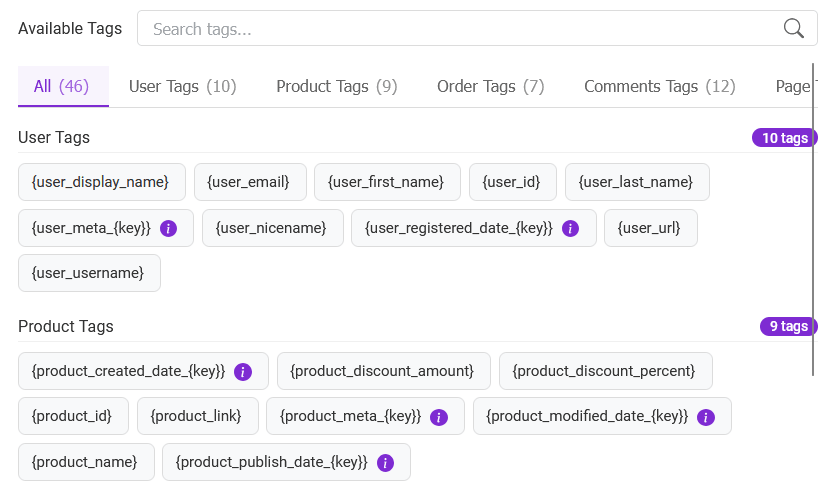
One of Notifal’s powerful features is dynamic tags. Instead of only static copy, you can insert tags that resolve using live context where supported. Examples you might use include:
{user_first_name} → logged-in visitor’s name where available
{product_name} → product context on relevant pages
{order_meta_total} → Order value where applicable
In Elementor or the Block Editor, open the tags panel, copy a tag, and paste it into headlines, body text, or buttons. Notifal includes dozens of tags for users, posts, WooCommerce products, and orders. Learn more in what are dynamic tags, and control which tags appear in builders from Notifal settings.
Block Editor as Template Builder in Notifal
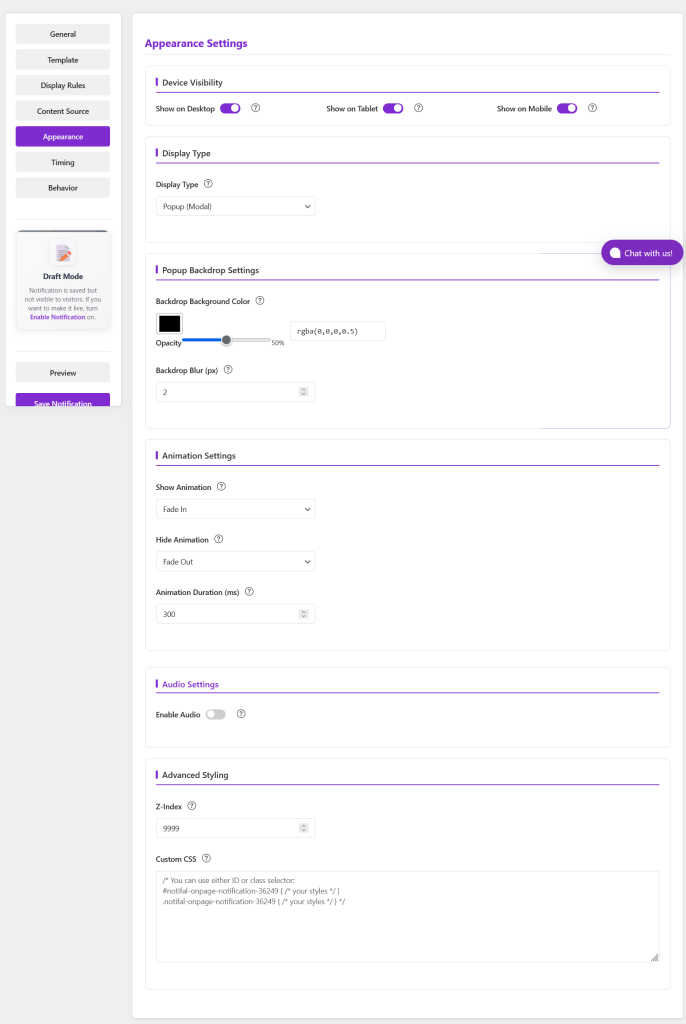
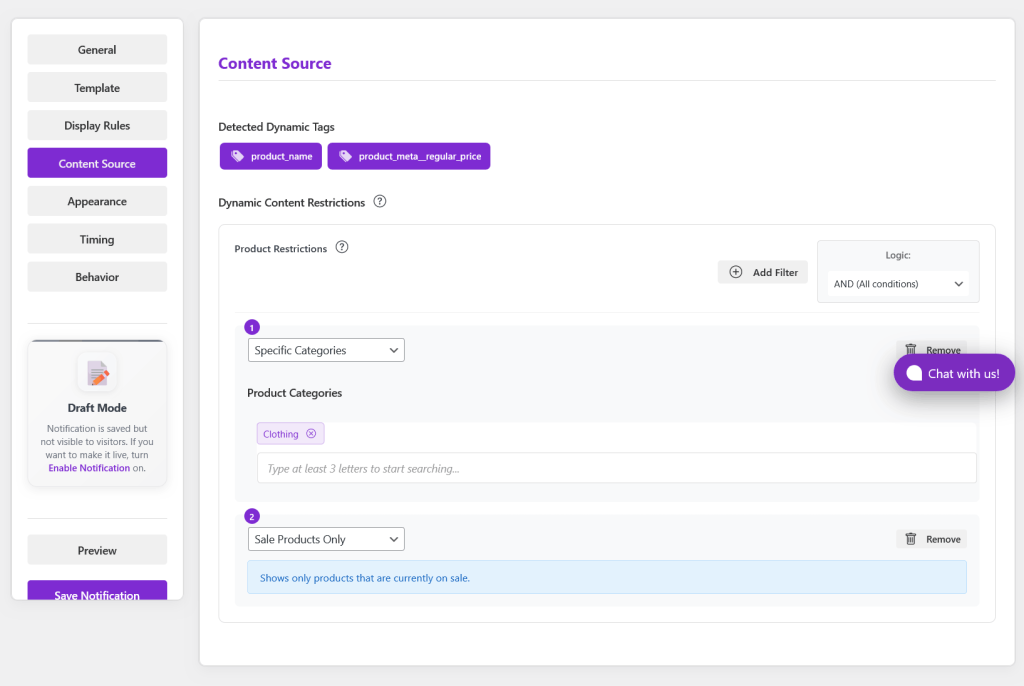
Step 4: Appearance and Content Source
Before targeting and triggers, two tabs are easy to skip but useful:
Appearance: device visibility (desktop/tablet/mobile), position, animation, and related presentation options so the notification matches how you want it to sit on the page. See popup vs floating box vs bar in the docs.
Content Source: options tied to how dynamic content in the template is analyzed or restricted; relevant especially for WooCommerce or content-heavy setups.
You can return to these anytime after you see a Preview.
Note: For precreated notifications, all settings are determined when you import, and you should only review the settings and change only those that are needed.
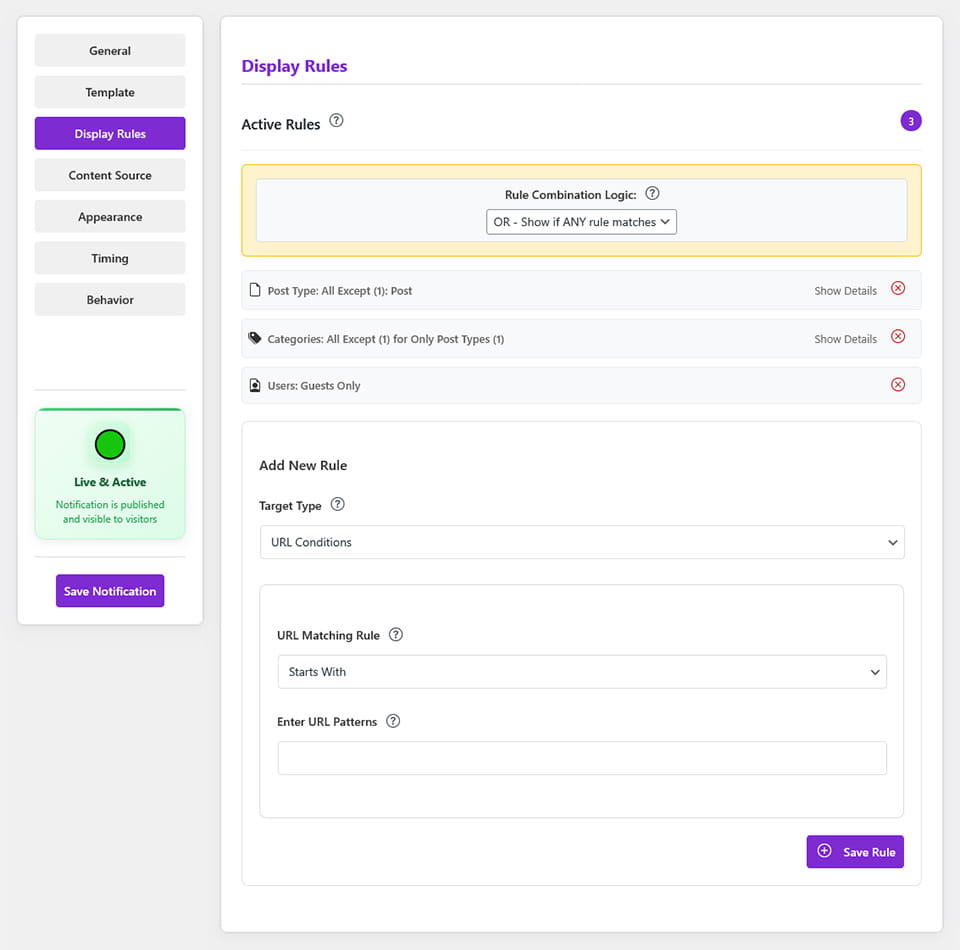
Step 5: Set Your Display Rules (Targeting)
This is the step that separates effective popups from annoying ones. A popup shown to the wrong visitor on the wrong page is just noise. A well-targeted popup converts.
If no rules are set yet, use Add Your First Rule (or add further rules once rules exist). You can target by:
All pages: show it sitewide
Specific pages or posts: e.g., only on your homepage or a specific landing page
Specific products: great for WooCommerce product page promotions
Post type: target any custom post type on your site
Categories: show on posts or products in specific categories
URL conditions: match or exclude specific URL patterns, even URL parameters like ?source=facebook(available in Notifal Pro)
User roles: show different popups to guests, subscribers, or customers (available in Notifal Pro)
You can also combine multiple rules with AND/OR logic for highly precise targeting (available in Notifal Pro)
Practical example: If you’re running a WooCommerce discount popup, target it to product pages only, not your blog, about page, or contact page. That alone will significantly improve your conversion rate.
Display-rules-settings-in-notifal
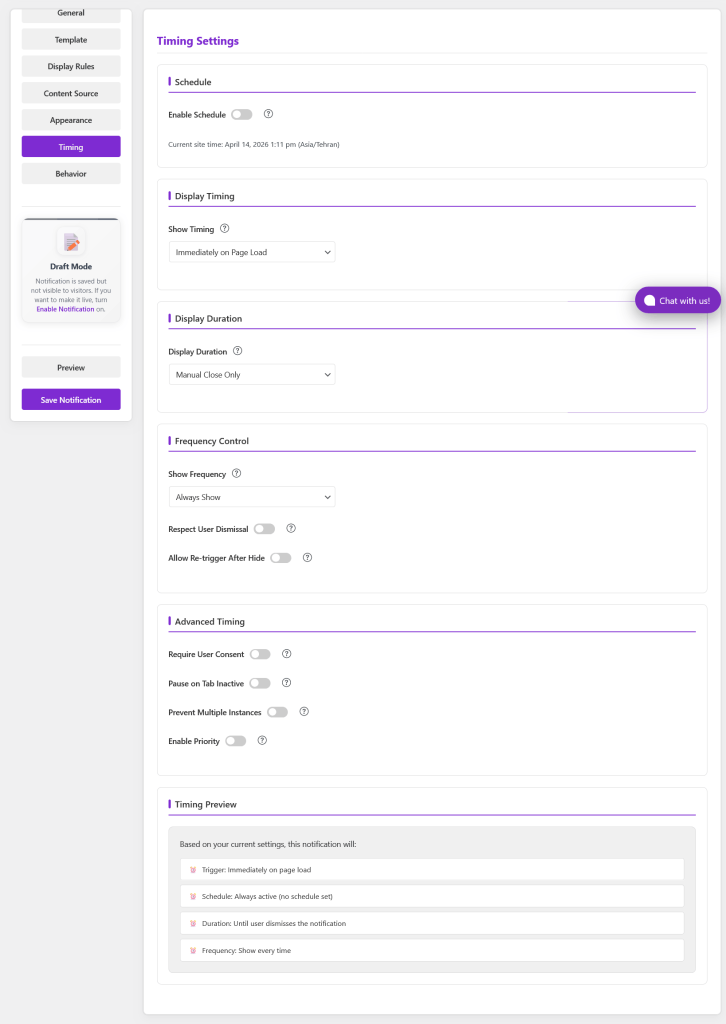
Step 6: Configure Your Timing Settings
Once you’ve set where the popup shows, configure when it appears. Open the Timing tab.
Scheduling
You can set a start date and end date for any notification, perfect for limited-time promotions, seasonal sales, or product launches. If your notification belongs to a Campaign, the campaign schedule can override the notification’s own schedule, keeping everything coordinated automatically.
Show Timing (Triggers)
Immediately: Popup appears the moment the page loads
After Delay: Appears after a set number of seconds. For your first popup, try a 5–7 second delay so visitors can engage with the page first.
On Scroll: Triggers when the visitor scrolls to a specific point (Notifal Pro)
Exit Intent: Fires when the visitor moves to close the tab (Notifal Pro)
After User Idle: Re-engages inactive visitors (Notifal Pro)
Custom Trigger: Click-based, JavaScript condition, or multi-trigger logic (Notifal Pro)
Display Duration: Set whether the popup closes automatically after a few seconds, stays open until dismissed, or uses a hybrid approach
Frequency: Control whether visitors see the popup every visit, once per session, or at capped intervals. You can also configure whether dismissal is remembered across sessions.
Want exit intent or scroll triggers? Those are some of the most powerful timing options available, and they’re unlocked in Notifal Pro.
OnPage notification timing settings
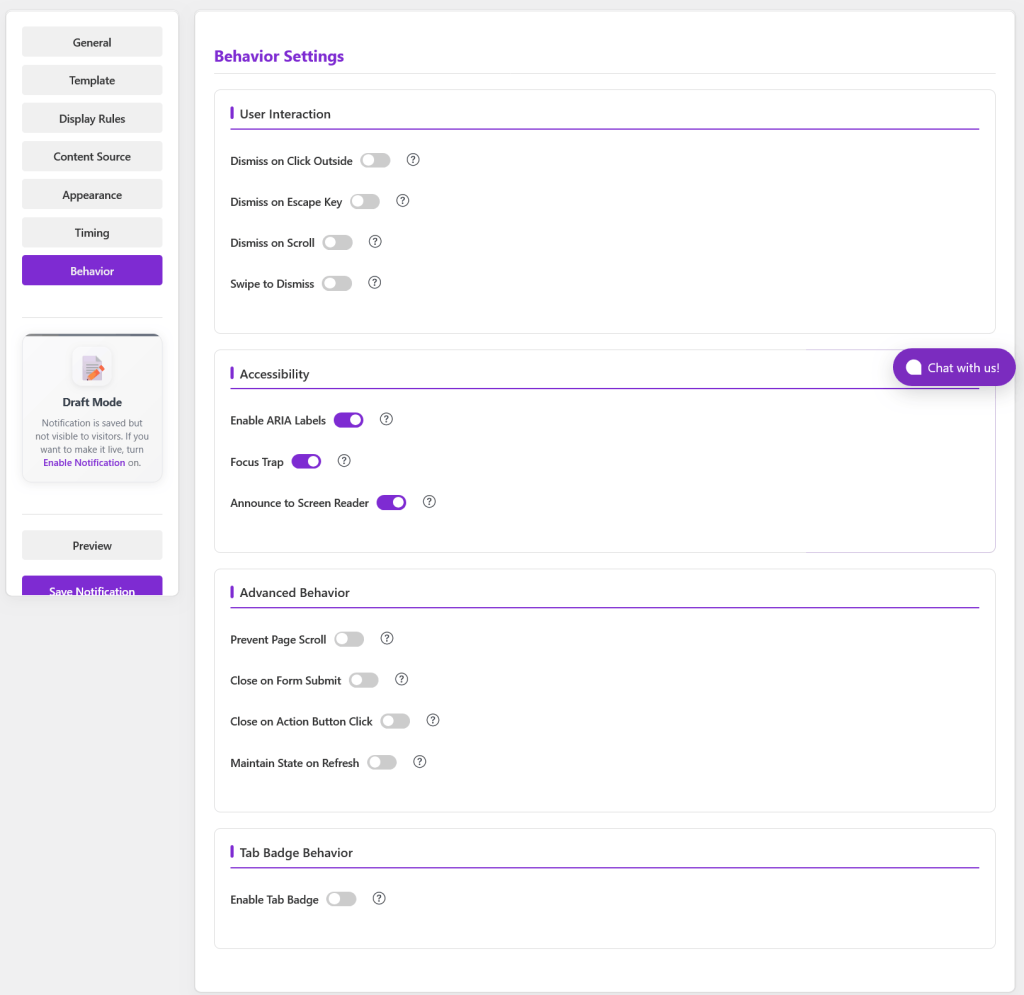
Step 7: Fine-Tune Your Behavior Settings
Before publishing, take two minutes to review the Behavior tab. These settings control how visitors interact with your popup:
User Interaction
Dismiss on click outside: lets visitors close the popup by clicking the background overlay
Dismiss on Escape key: allows keyboard-savvy users to close with the Esc key
Swipe to dismiss: essential for mobile UX, lets users swipe the popup away (Notifal Pro)
Dismiss on scroll: closes the popup when the visitor starts scrolling (Notifal Pro)
Accessibility
ARIA labels: Improves accessibility for screen reader users
Focus trap: Keeps keyboard focus inside the popup when it’s open
Screen reader announcement: Announces the popup content to assistive technology users
Advanced
Prevent page scroll: Lock the background when the popup is open (common for modal popups)
Close on form submit: Automatically closes the popup after a visitor submits a form (you can set a delay)
Maintain state on refresh: Keeps the popup in its current state if the page is refreshed
Browser tab badge: Changes your browser tab icon and text when a notification is active, recapturing attention from distracted visitors (Notifal Pro)
For most beginners, the key one to check is “Prevent page scroll” for modal popups, it creates a more focused experience and typically improves conversion rates.
OnPage notification behaviour settings
Step 8: Preview and Publish Your Popup
You’ve designed it, targeted it, timed it, and configured its behavior. Now it’s time to check it and go live.
Click Preview when it appears in the sidebar. Notifal opens a preview on your site so you can see how the notification looks in context
Check desktop and mobile (device visibility is configured under Appearance, and you can verify in the preview)
In General, turn Enable Notificationon when you’re satisfied
Click Save Notification
Your popup is now live for visitors according to your rules.
What to Do After Your First Popup Goes Live
Publishing the popup is the beginning, not the end. Here’s what to do in the days that follow:
Monitor your analytics: Notifal tracks revenue generated by every notification right in the free version. Notifal Pro adds impressions, total clicks, click-through rate, conversion rate, close rate, and a full performance overview chart. Give it a few days of traffic, then review the numbers. See on-page analytics in the documentation.
Watch your close rate: if it’s very high, your targeting or timing might be off. Try a longer delay or narrower page targeting.
Test your headline: small copy changes can produce significant conversion lifts. Tweak the headline and give it another few days.
Explore more templates: now that you know how the system works, browse Explore Pre-created Notifications again or the Notifal template library for new formats you haven’t tried yet.
Watch the onboarding videos: the Notifal onboarding course covers advanced features in detail and is the fastest way to level up after your first popup is live.
Join the community — the Notifal community is where you can get advice, share results, and learn what’s working for other users.
Frequently Asked Questions About WordPress Popups
Do I need coding skills to add a popup to WordPress?
No. With a popup plugin like Notifal, you install the plugin, import a template, adjust copy and images in Elementor or the Block Editor, set targeting and timing, then publish. The entire process in this guide takes under 10 minutes with no custom CSS or JavaScript.
What is the best free WordPress popup plugin for beginners?
Use narrow Display Rules (show on the right pages only), a short delay before the popup appears, and sensible frequency limits so visitors do not see the same message every visit. Exit-intent and scroll triggers in Notifal Pro help you show offers at high-intent moments instead of on every page load.
Can I design my popup with Elementor?
Yes. When you import a pre-created notification, choose the Elementor builder. You can also use the native WordPress Block Editor if you prefer. Both builders open from the Template tab in the Notifal editor.
What is the difference between a popup and a floating notification?
A popup typically appears centered over the page and may dim the background. A floating box or floating bar sits in a corner or edge of the screen and is less intrusive. Notifal supports popups, floating boxes, floating bars, toasts, and top bars. See display types explained in the documentation.
The free version gives you everything you need to create and publish your first popup, one active notification with core design, targeting, and timing features. That’s enough to get started and see real results. Compare plans in Notifal Free vs Pro.
Adding a popup to your WordPress website doesn’t require a developer, a designer, or any technical knowledge. With Notifal, the process is straightforward: install the plugin, import a pre-created notification, adjust the design in Elementor or the Block Editor, set Display Rules and Timing, review Appearance and Behavior, use Preview, then turn on Enable Notification and Save.
The pre-created library alone saves you hours, you import a conversion-minded layout in one click, tune the message, and go live in minutes. When you need full control, the Template tab and builders are always there.
Your website is already getting traffic. The question is whether you’re making the most of it. A well-placed popup, whether it’s an email signup, a first-purchase discount, or an exit-intent offer, can be the difference between a visitor who bounces and one who converts.
Start with the free version, get your first notification live today, and explore the onboarding videos to discover everything Notifal can do. Still comparing popup tools? Read our plugin comparison guide. When you’re ready to unlock advanced targeting, triggers, and analytics, Notifal Pro is waiting.